




When you post to a Mattermost channel, everyone who views that channel will be able to see your message, and the channel name will be highlighted with a new message display in users’ channel list.
However, not everyone will receive a specific notification of your message. In particular, it’s not a good idea to assume that by just posting in a channel your message will definitely be seen by (a) over-busy councillors/candidates, or (b) less committed activists subscribed to the channel.
(a) Mention a specific user to get their attention on a Mattermost channel
Here is how to ‘mention’ someone (equivalent to ‘tagging’ on certain other comms platforms) so they will receive a specific notification about your post:
- While typing your post, type @ followed (without a space) by the first characters of the name of the person you want to mention.
- Mattermost should auto-suggest those users whose username and/or screenname matches the first characters you have typed in.
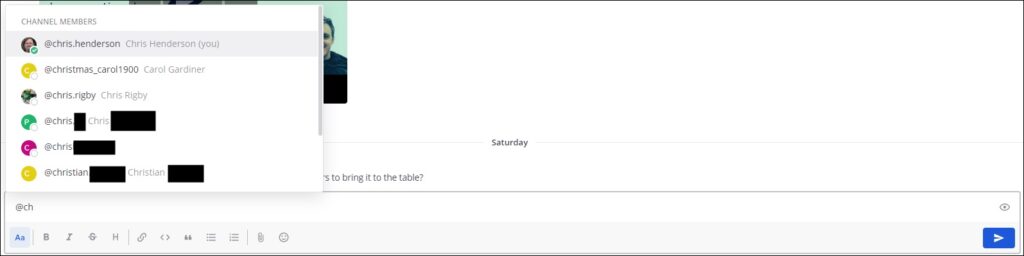
- Select the correct user from the auto-suggest list.
- If you need to, you can ‘mention’ another user by following the same steps.
- Then continue your post in the usual way.
(b) Send a notification of your message to everyone in the channel
If you are making a major announcement of interest to everyone in a particular Mattermost channel, you can send a notification of your post to:
- everyone in that channel – type @channel into your post. (Please use this feature sparingly.)
- OR everyone currently logged into Mattermost on that channel [most likely to be of use during a live members’ meeting] – type @here in your post.
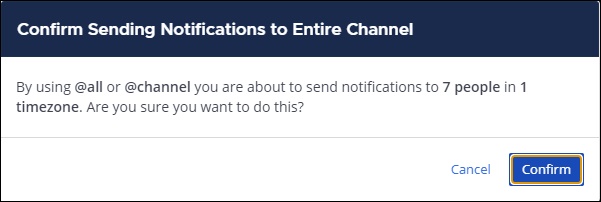
- When you send your post, a pop-up window will probably appear asking you to confirm that you want everyone in the channel to receive a notification. Click the blue Confirm button.