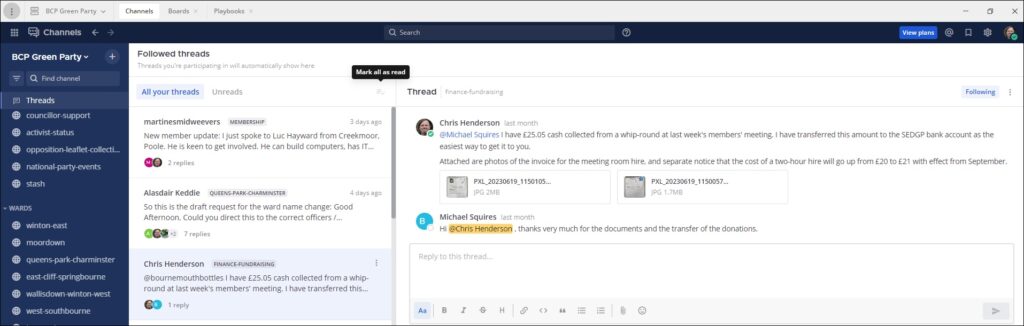





Threads are a significant design feature in Mattermost (different to WhatsApp, Messenger and Discord) which allow a back-and-forth discussion on a single post to take place visibly but without that single discussion taking over the view of a channel for everyone.
Generally, unless you anticipate your response to someone’s post will be of interest to different and/or more people than the original post itself, you should reply in a thread. This is good etiquette to keep Mattermost legible and uncluttered for all members.
(a) Starting (or adding to) a thread
To reply in a thread on desktop Mattermost:
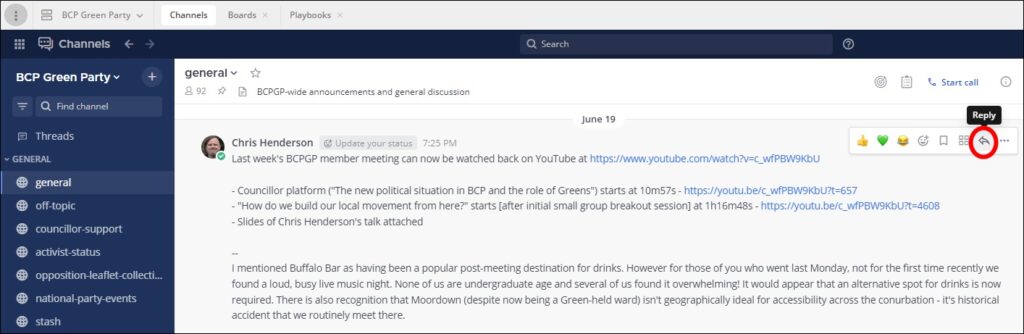
- Hover over the post you wish to reply to.
- Eight icons will appear at the top right of the individual post you are hovering over. Select the seventh one, the back arrow – its caption Reply appears when you hover over it.
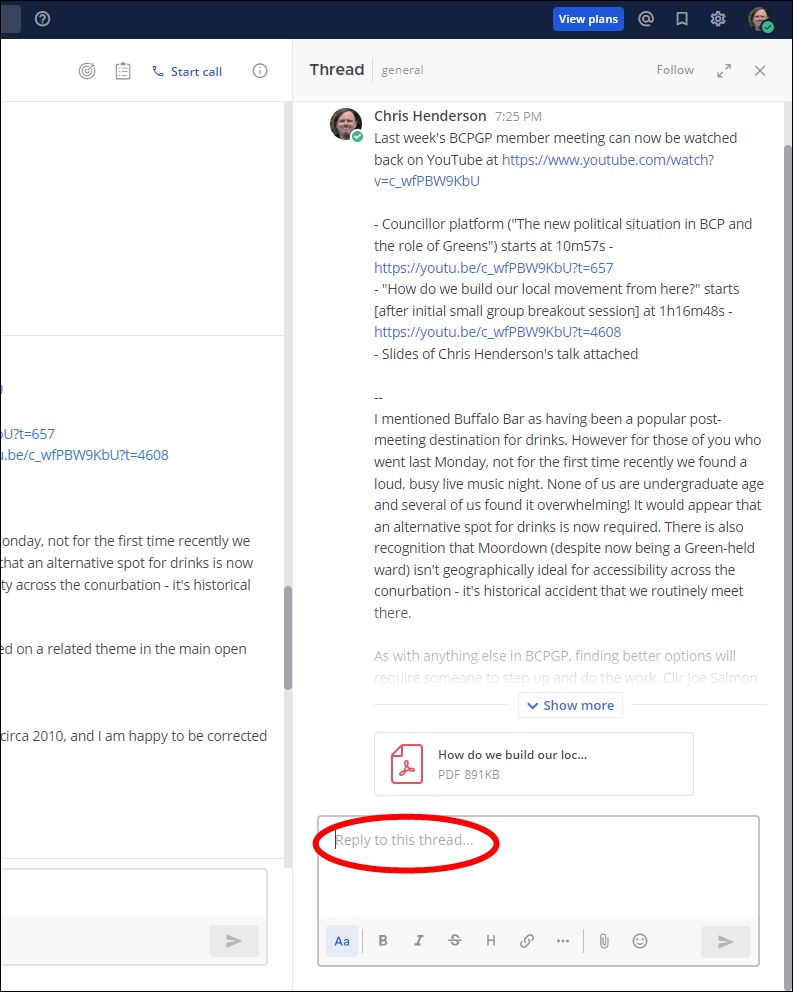
- The thread will then appear in the right-hand pane. You can scroll through the thread so far.
- To add a reply, use the text box at the bottom.
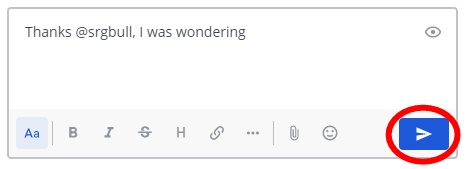
- Click the blue paper plane icon to send your reply.
(b) Checking threads to which you have contributed (or followed)
The Threads tab in Mattermost shows:
(a) replies to your posts
(b) further replies in threads where you have contributed
(c) posts/threads where you have been tagged.
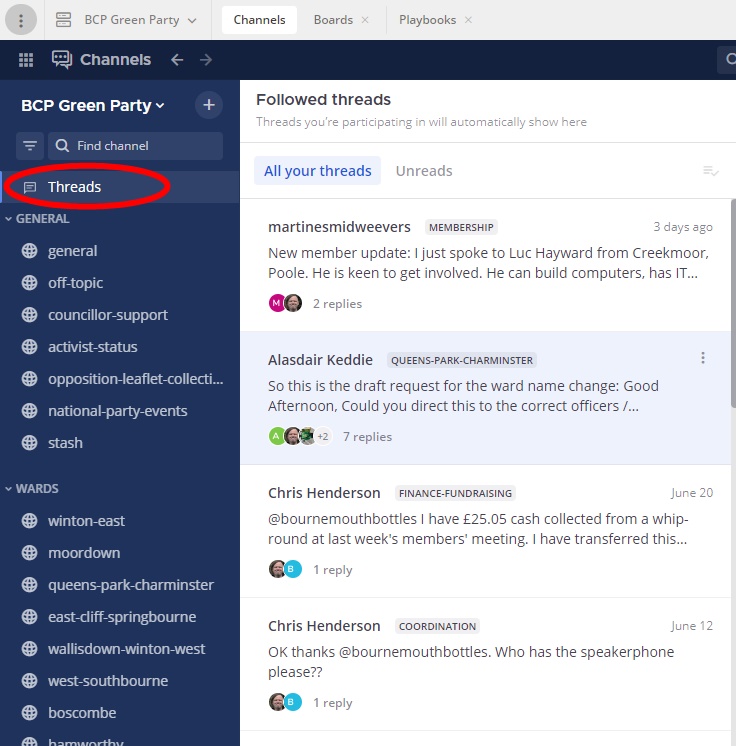
To check your Threads tab:
- Click the Threads tab at the top of the dark-blue bar (at the left-hand side on desktop view, the home page on a mobile device).
- (If you have any new thread responses since last checking, Threads will appear in bold in the dark-blue bar.)
- Click on any of the threads in your personalised Threads view, to expand it.