




Prefer to use an app rather than a browser tab? (No specific need with Mattermost – purely a matter of your general preference for your digital life.) If you’ve yet to install the Mattermost app…
- Click the Download the app now option at the bottom, after first navigating to mattermost.bcpgp.uk [refer to first screenshot in this section above].
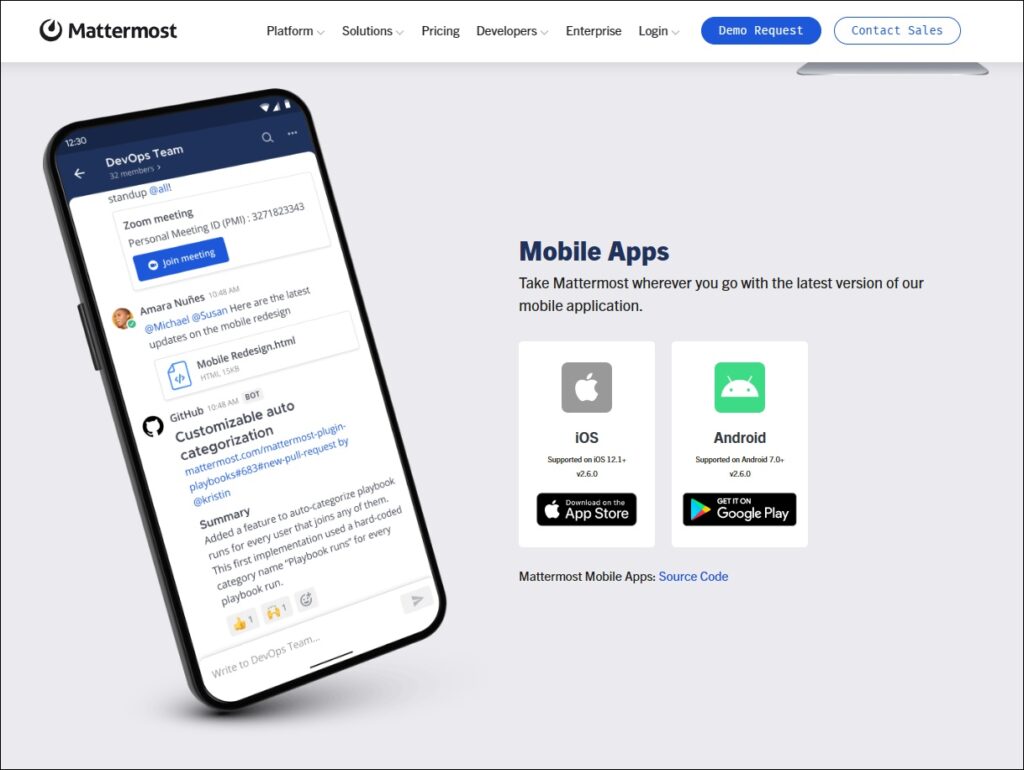
- Find your operating system – Windows, macOS, Linux, or (scroll down from ‘Desktop apps’ section to ‘Mobile apps’ section) iOS or Android.
- Click the corresponding dark blue Download button [for a desktop device version], or the link to the Apple App Store or Google Play store.
- If necessary, open your downloaded file and follow the usual prompts to install.
- Then open the Mattermost app once installed, and enter your registered email address and password as above.
Optional: Set the Mattermost desktop app to launch automatically in the background
If you’re happy (optionally!) for Mattermost to run automatically in the background on your PC/Mac, you will receive straight away the desktop notifications you have chosen to receive, without needing to remember to manually open Slack first.
Here’s how to turn on the setting for Mattermost to run automatically on startup:
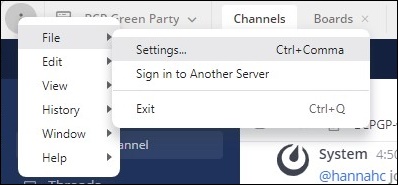
- While you are logged in to mattermost.bcpgp.uk on the desktop app, click the ‘three dots’ icon in the very top-left hand corner:

- Go to the File sub-menu and select Settings…
- Click the tickbox next to the Start app on login option, so that it is ticked (in blue).
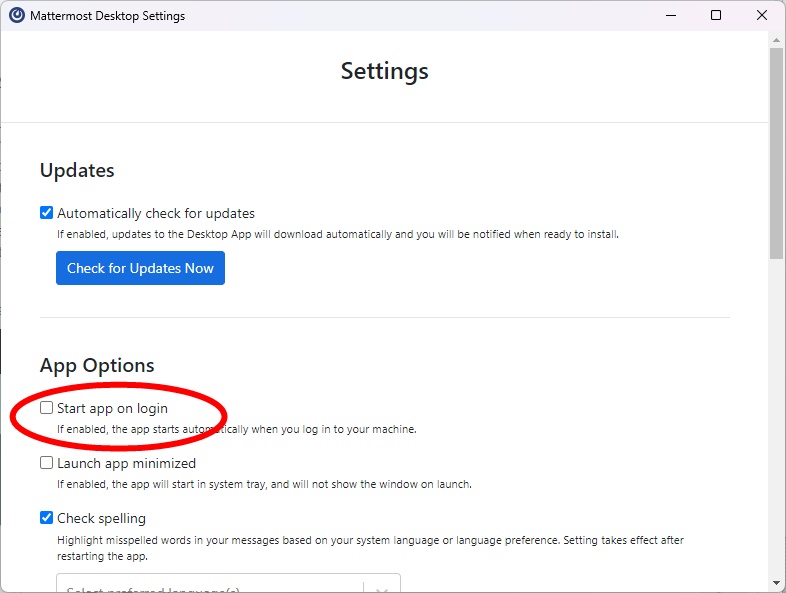
- Your selection is saved automatically – just close the Settings menu when done.
Optional: Pin the Mattermost app to your Windows taskbar
You can additionally ‘pin’ the app to your Windows taskbar or MacOS dock (along the bottom of your desktop), so that the Mattermost app will always be there and just one click away:
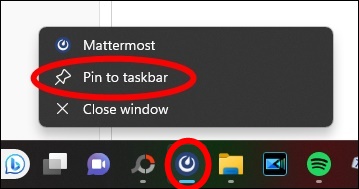
- In Windows, while you have the Mattermost app open, right-click on the Mattermost app icon on your taskbar along the bottom of your screen, then left-click Pin to taskbar: