




To start a voice chat in any channel (or DM)
- Navigate to the channel or DM thread you want to start the voice chat in.
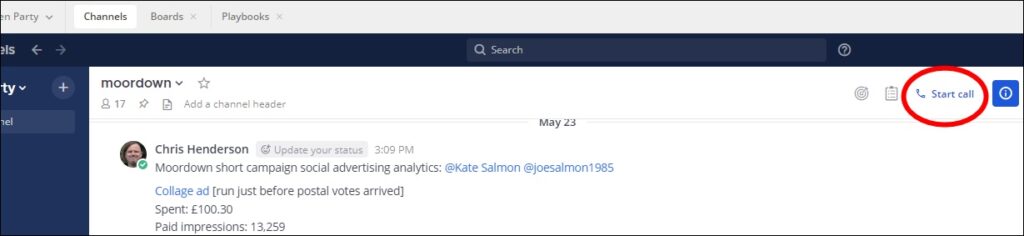
- Click the blue-on-white Start call button (with a phone icon) at the top right-hand corner of the channel pane. The call will start:
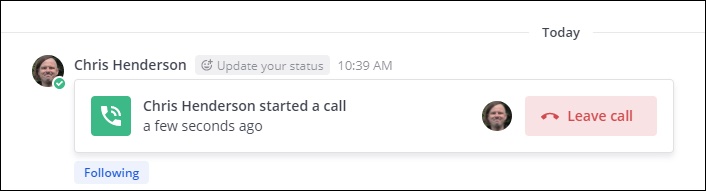
- A post will appear in the channel feed:
-
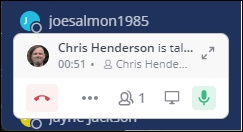
- Your call controls will appear in the bottom left-hand corner:
Joining a voice chat
If someone starts a call in a channel you are in, or a call is underway in a channel you navigate to, there will be a post in the channel pane stating this.
Press the green button there to join the call. [training screenshot pending]
Leaving a voice chat
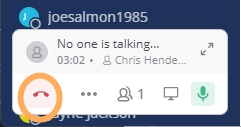
- To leave any voice chat you are in, click the red phone down icon – the first icon in the call controls box in the bottom left-hand corner of the window (captioned Click to leave call when you hover over it).
Using Mattermost voice chat
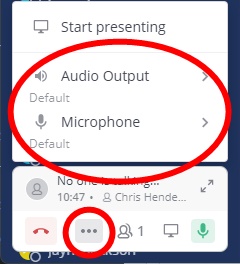
- Problem with hearing the call or making yourself heard?
- Click the three dots icon, second along in the call controls box in the bottom-left-hand corner, where you can change your speaker output and microphone input.
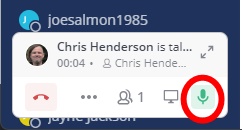
- To mute yourself during a call, click the green microphone button, the rightmost button on your call control panel in the bottom left-hand corner (labelled Click to mute when you hover over it).
- Voice chat on Mattermost feels a little different to Zoom to use. From our initial test for the first version of this training guide – Mattermost voice chat seems to have as its central design feature only allowing one person to speak at a time. So please let whomever is speaking finish, before you try to come in.
Share your screen during a Mattermost call
- Click the screen icon, the fourth icon along in the call controls box at the bottom left-hand corner of the window (captioned Start presenting when you hover over it).
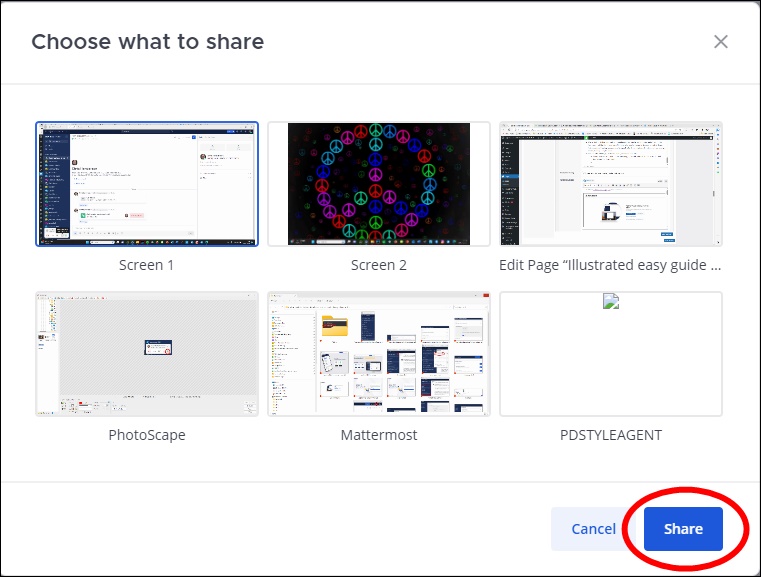
- In the pop-up window that appears:
- Select which window you want to share.
- Click the blue Share button to start sharing.
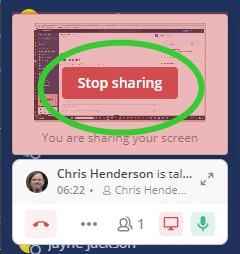
- To stop sharing, click the red Stop sharing button that will have appeared above the call controls box in the bottom left-hand corner of the window.